Hi,
I’m currently working on the Linux Basics Real Robot Project.
Previously, I had some connection issues with the Real Robot Lab, which were resolved successfully.
Now, I’m facing a new problem when I try to launch the Real Robot bringup program.
Command :
source ~/simulation_ws/install/setup.bash
ros2 launch turtlebot3_realrobot main_turtlebot3_lab.launch.xml
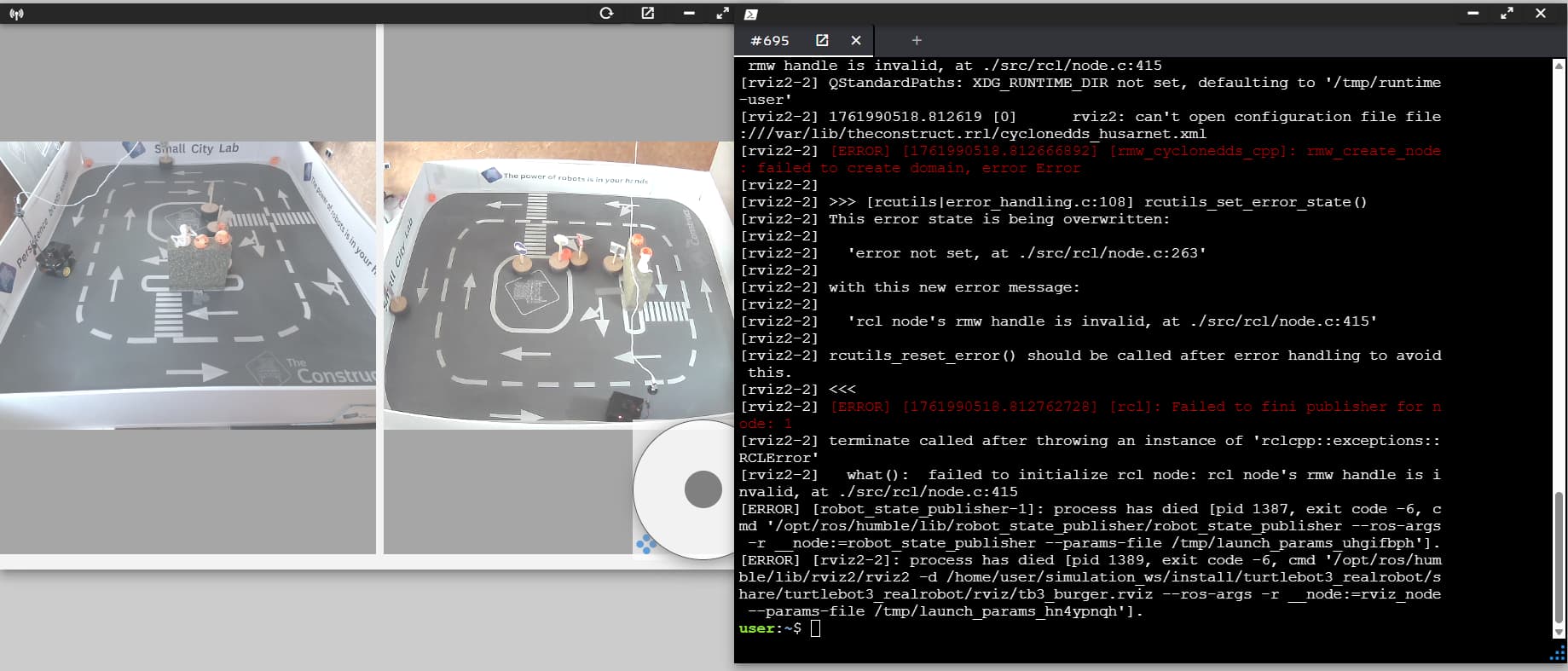
When I execute the launch command, I immediately get the following error logs:
I have already tried the following steps:
- Closed and relaunched the Real Robot Lab
- Reloaded the environment
- Restarted the entire ROSject
- Verified that I’m using the Real Robot Lab (not the simulation)
Could you please check the Real Robot Lab connection or reset my Real Robot environment?
Thanks a lot for your help and support!
Hi @austinyeh, a lot of people are having issues with this Linux real robot program. Let me investigate and get back to you ASAP.
Hi @austinyeh, the command ros2 launch turtlebot3_realrobot main_turtlebot3_lab.launch.xml
launches a simulation. That’s why it’s located in ~/simulation_ws.
You don’t have to launch a simulation when connected to the real robot. The whole point of a simulation is to use it when you don’t have a real robot.
You need to run the program that makes the robot move. It’s probably a node you wrote. You can then open rviz manually and add all the components you want!
Hi,
Thank you very much for your reply and for clarifying that the command
ros2 launch turtlebot3_realrobot main_turtlebot3_lab.launch.xml
is actually intended for the simulation environment.
I would like to confirm the correct procedure when working with the Real Robot Lab,
since I have been strictly following the instructions provided in the Jupyter notebook.
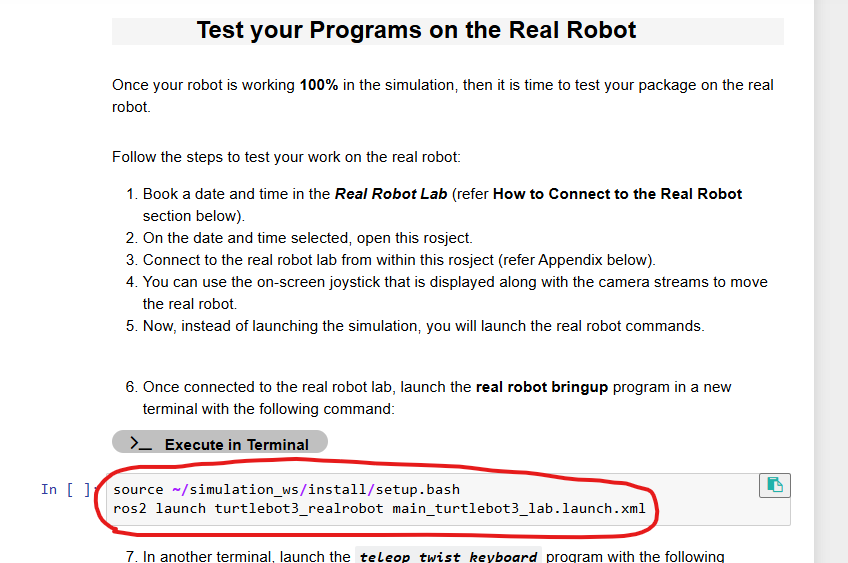
According to the current Jupyter guide under “Test your Programs on the Real Robot”,
the first step after connecting to the Real Robot Lab is to run:
source ~/simulation_ws/install/setup.bash
ros2 launch turtlebot3_realrobot main_turtlebot3_lab.launch.xml
However, based on your explanation, it seems that this step might only apply to the simulation and not to the real robot.
Could you please confirm whether this part of the Jupyter notebook might be outdated or contain an error?
It would be very helpful to know the exact first step to take after connecting to the Real Robot Lab —
for example, whether I should instead run:
source ~/ros2_ws/install/setup.bash
ros2 launch turtlebot3_realrobot main_turtlebot3_lab.launch.xml
Then execute :
./robot_interface.py
and directly execute my bash control scripts (./obstacle_avoider.bash).
I just want to ensure I’m following the correct procedure before testing again.
Thank you very much for your time and clarification!
Thanks for clarifying. Let’s look into that and come back to you.
Thank you very much for your quick response and for looking into this issue.
I really appreciate your help! I’m looking forward to the fix so that I can complete the final testing and confirm my presentation date soon.